If you’ve made it this far, you’re doing great and are on your way to understanding the ins and outs of the Ableton Live DAW! Today we’ll dig into what the mixing section of session view (and arrangement if you turn it on).
So far you have a general understanding of:
- Switching between Session and Arrangement Modes
- Setting BPM / Key for tracks
- Adding MIDI tracks and Audio tracks to projects
- Using the drum rack for MIDI drum kits
- Using the midi note editor and playing instruments and writing basslines
- Basic audio workflow with Warping
- Using the simpler for creating instruments from sounds
- Using the tuner and EQ3 for inspecting and spacing sounds
- Analyzing tracks in Ableton by breaking down the sections (arrangement exercise)
- Using the midi devices to make writing melodies easier
- Using the audio devices for building better transitions in your songs
At this point you might have noticed that parts of your tracks are standing out more than you’d like for them to or are not coming through and getting enough attention, this is where mixing comes in! In this blog post, I’m going to start with a concise background on mixing theory. After that, we’ll go through a few intermediate approaches to managing loudness in your songs (mixing) through what Ableton provides:
- The channel mixer section in Ableton
- Spectral mixing: Channel EQ, EQ3, and Filter
- Amplitude mixing: Clipping (saturator), compression, limiter, and gate
I’ve found mixing to be a challenging task. I want for you to take away from this a simple foundation if mixing with some simple goals to go after when you’re doing this process. It can be very easy to overcomplicate what mixing is actually about – I want for you to have a few tools at your disposal to keep it simple.
Because Ableton Live Intro does not include a spectrogram, I recommend you install the VST device, Span for visualizing your sounds while you get started. For this exercise today, we’ll just use the beat that was made for lesson 3 to try and illustrate mixing. I’ll provide more recommendations for resources for learning mixing but you should also have some of your own work now that you can explore mixing on too.
Mixing Foundations and Theory
Before we get into the tools for mixing, it’s important to understand what mixing is for. The general idea behind mixing is that you want to achieve the following goals:
- Make the sounds clear to the listener (dancer) so they can follow the song’s energy (telling the story of the song)
- Give the sounds in your songs the listener’s attention at the right time (taking turns)
- Make it so that people DJing with your music don’t have to adjust your track to play well with other songs in the same genre (genre mixing)
- Make it so your song will sound good on a variety of audio sources (translation)
Before proceeding, I want to point out that while it’s helpful to have a good audio source – e.g. professional music monitors, headphones, that exceptional monitors are not the most important tool. What is more important is to have a variety of audio sources that you are familiar with so that you can better compare and contrast your music to other music for achieving consistency. While expensive high-performance monitors can reveal details that are fun to explore, you really are better off targeting real-world sound systems that your listeners will use.
Listening and correcting for translation to multiple sources is better than creating a perfect mix for a single reference source. There’s a music adage of “the car test” – testing music in a car stereo to make sure it sounds good loud. Many producers also test out their music on headphones like Apple’s included ones that come with an iPhone and a bluetooth speaker. The best speaker for mixing is not necessarily the one that gives you the most pleasant listening experience but the one that reveals problems the best. This is because you don’t know what your listener will be listening on and you oftentimes only have one chance to capture that listener.
I’ll also point out that when you are mixing songs, everything is presented to you in relative terms. The actual SPL (DBA) that come out when the listener hears, depends on the sound source they’re playing on and how loud they’re amplifying the sounds. You want things to sound good at both loud and quiet settings – make sure to mix with both extremes in mind and note that listening in the extreme ranges of sounds points a bunch of things out worth addressing.
When you mix sounds to where they should be in relative amplitude, you also need to account for the frequency of the sound. Our hearing is more sensitive to certain frequencies than others, so if you want things to sound balanced or at the same loudness, some sounds need to be quieter than others in amplitude. The research behind this is called the Fletcher-Munson curve or the Equal loudness Contour – ISO 226.
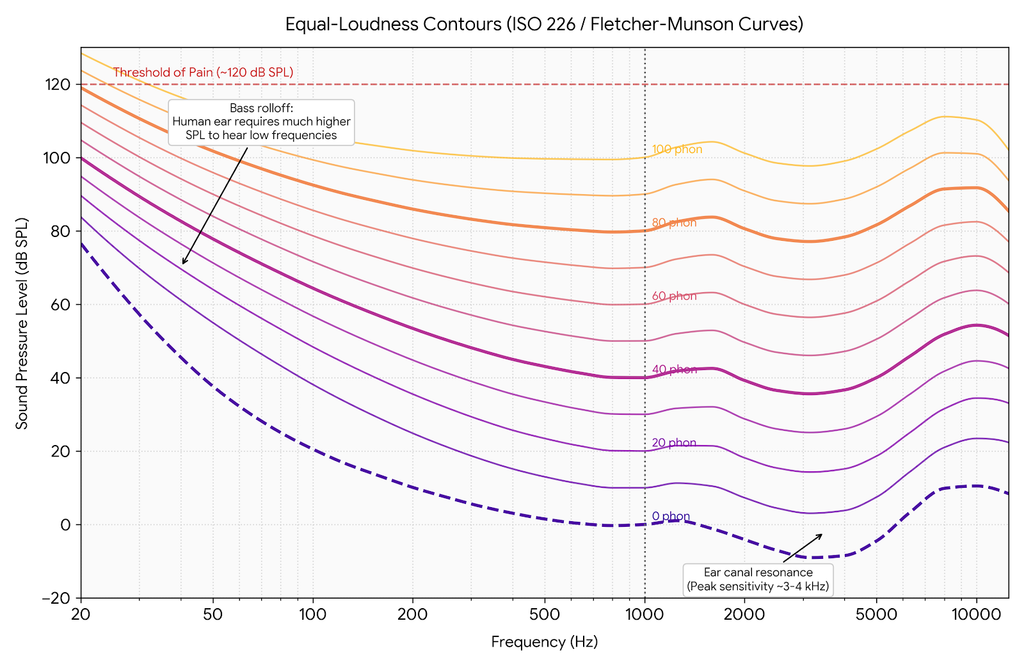
What this graph tells you is that sounds that are low frequency (e.g. sub bass, sounds below 100hz) can be extremely loud without hurting your ears. Conversely, sounds in what I’ve heard some master producers call “the pain zone” – between 2khz and 4khz – become painful at much lower amplitude than low frequency or high frequency sounds. Sounds in the high pitch range, like the sound of bacon sizzling, are similar to sub bass and are rarely painfully loud.
The tools that we have at our disposal in music for monitoring sounds are a spectrograph/spectrogram such as the VST Span device and VU Meters like you see in the session view in Ableton Live.
A spectrograph will look something like the following:
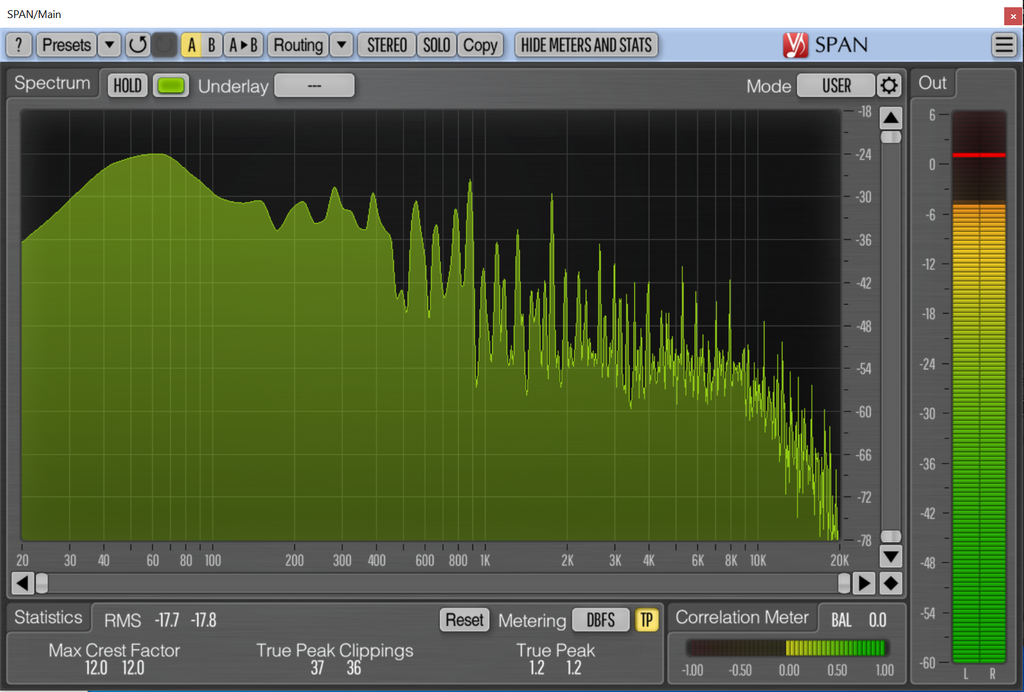
The loudness is presented on the vertical axis and the frequency of the sound is presented on the horizontal axis. Frequencies of sounds also correspond to notes. so on the best visualizations, you can also use your mouse to see the note equivalents on the graph. In this screenshot of Span, the mouse is over the D5 note:
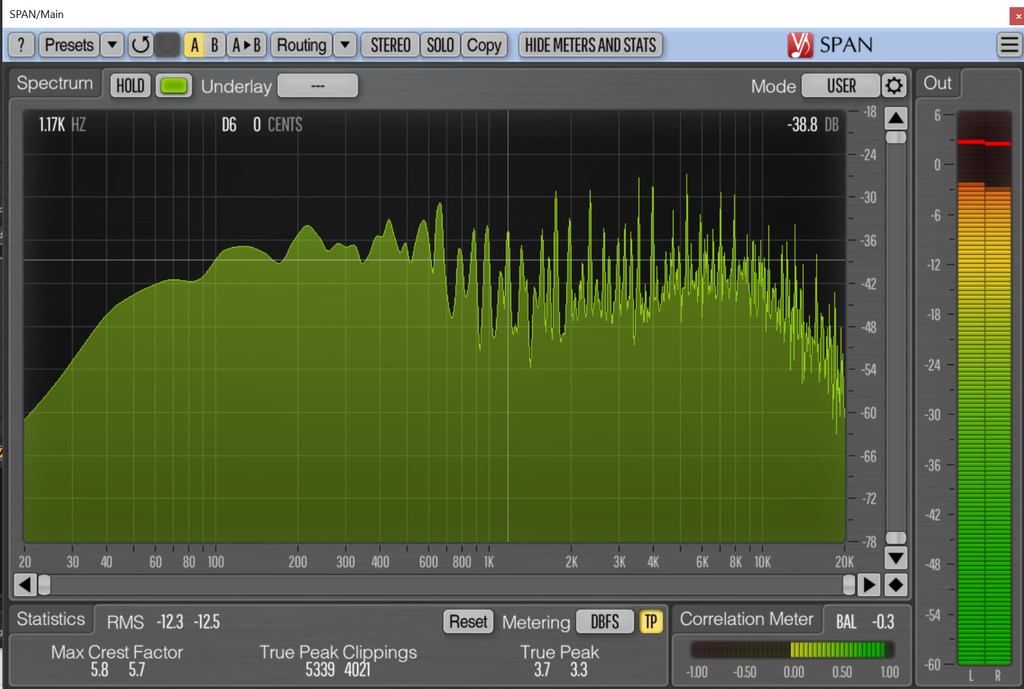
This is useful in practice because you can sometimes identify from the note frequency which instrument is creating the specific sound that you want louder or quieter. For example, if you have a melody that is played around the key of D, and a bassline that is mostly G’s, you should start looking in the melody to address D notes that are too loud.
In Span, you can configure the slope (the amplitude/frequency) to adjust where the top of the graph is, based on frequency – most people like to set it to 4.5 which generally translates to ISO-226:
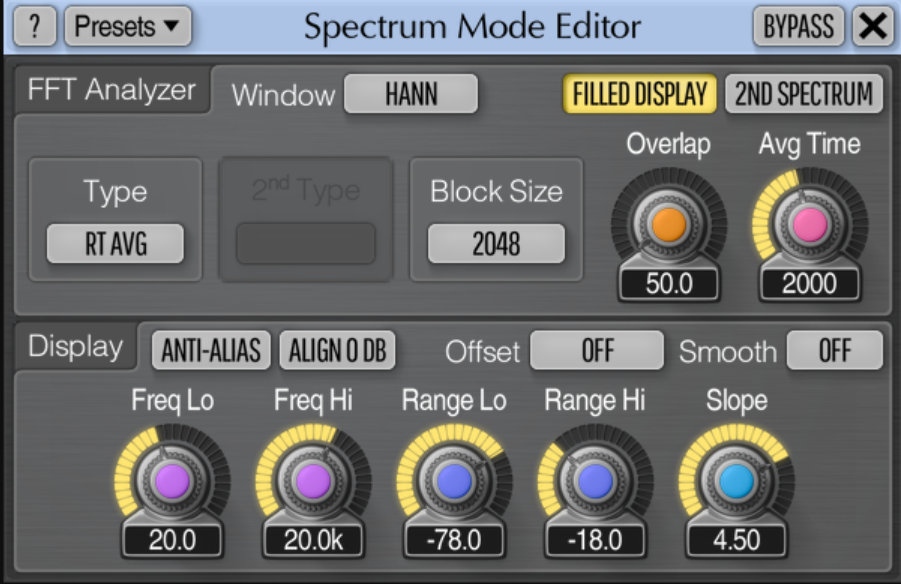
This makes it so that the relative “top” of the graph is similar in loudness across the frequencies.
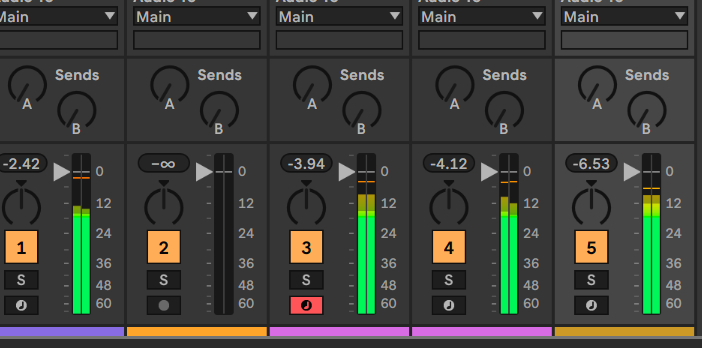
The VU meters in Ableton Live appear when you are in session mode and tell you the loudness at peak (most loud instantaneous) and RMS (average) for each channel in your track:
The meters present the peak loudness in non-green colors and the RMS is presented in solid green. You might also notice that the meters always keep the highest peak volume, which I find to be a bit distracting but also industry standard in these types of monitors.
Although peak is useful, RMS I find to be more meaningful and practical – sounds with high peaks oftentimes masquerade as being quiet. Sounds with long durations at high volumes really stand out and will feel louder. What I’m trying to say is – don’t focus only on the peaks, they can distract you from the reality that the sounds are quiet sounding because they’re only that loud for a moment. Lots of space between the peaks and RMS measures indicates that sounds that appear quiet are masquerading as being loud in the meters, we’ll discuss the tools for managing this later on.
Beyond the meters, you can Bounce (control+b) in Ableton to audio, which will show you the amplitude of sounds over time:
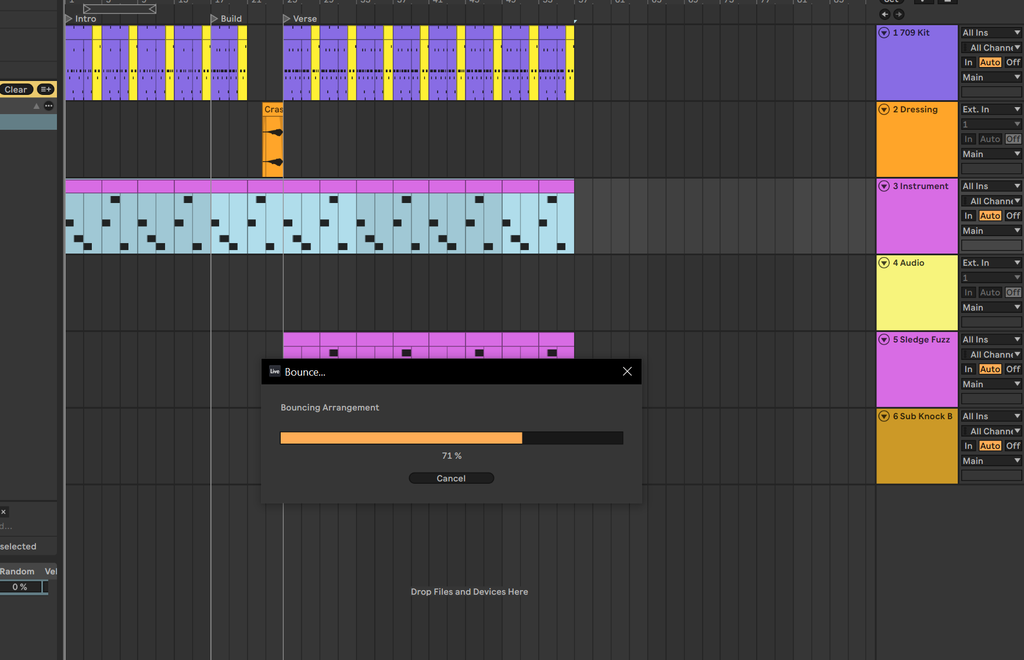
After a sound is bounced, you can really clearly visualize where the loud and quiet parts of a track are:

This is an especially useful visualization for when you have sounds on top of each other that are combining to make a loud peak. Sound waves are “additive” meaning that if you have two sounds in the same phase (aligned peaks and valleys of the sound at the same time) those sounds will add together to make a louder (higher amplitude) sound. If you invert the phase (reverse the tops and bottoms) of a sound and put it over itself exactly in phase, the sounds will completely cancel themselves out. This is how ANC (active noise cancelling) headphones work – the sound you hear is physically made quieter by inserting phase inverted sounds before it reaches your ear.
I’ll add there are a few things useful to know about the tools that we have for amplitude mixing:
- Gate – Makes sounds that are quieter than a threshold completely silent – useful for removing sounds that stick around in the mix
- Compressor – Makes sounds that are above a threshold quieter – useful for reducing dynamics and peaks, the difference between loudest and quietest range of a sound
- Clipper – Removes sounds beyond a threshold – useful for removing peaks entirely
With this background in mind, we’ll now start mixing sounds so that they are at the “right” relative amplitude. I’ll note that there is no correct way to mix – different people like different blends of sounds and there is no “correct” target that you must place sounds to. However, going back to our goals – DJs will have an easier time mixing your music if the relative amplitude of your music matches similar music and listeners will have a more pleasant experience if your music is within normal boundaries of other music they listen to. So, when you’re starting out with mixing, try and make your music match a target relative loudness across your mix that matches another song and draw attention to sounds you want the listener to hear by making them louder and making other sounds less loud so they’re not in the way of each other.
Ableton Live’s Channel Mixer
At this point, let’s open the week-3 pt 2 session so we have a common project to look at and analyze. Play back the track and make note of the mixer section. By default, the channel mixer is visible in Ableton Live when you are in session view and it can be turned on in arrangement view. You can press control+alt+m to turn it on and off in either. Here you can see arrangement view with the meters enabled:
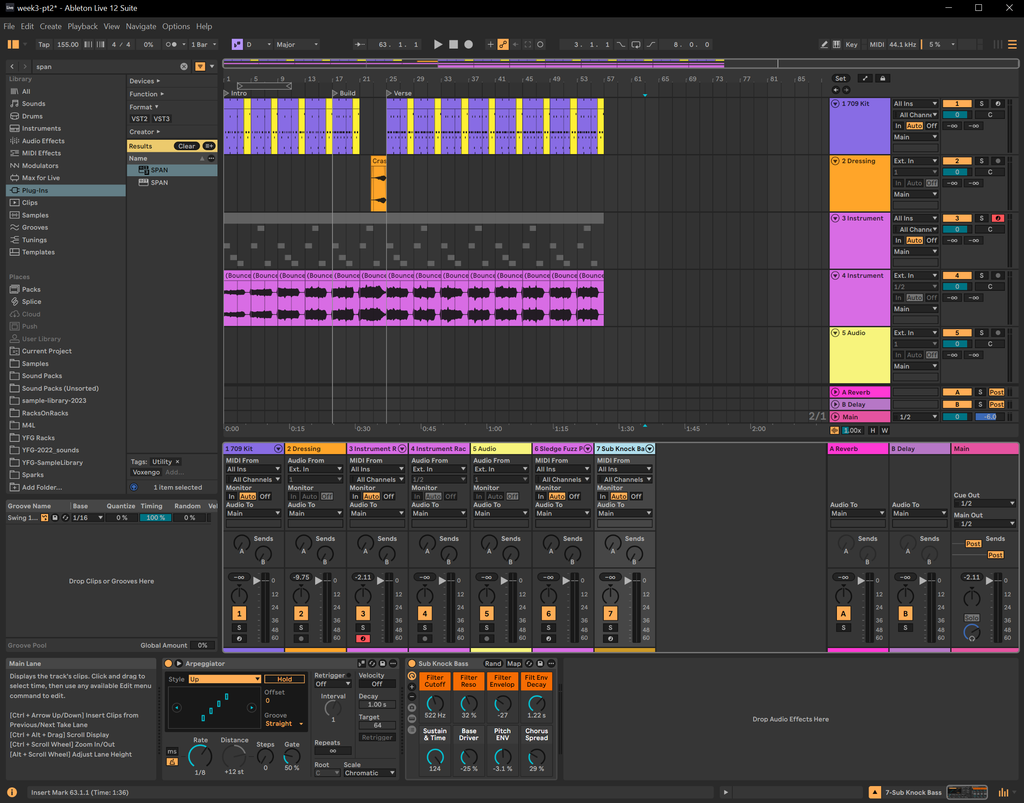
You can resize the meters in the view to zoom in on the meters by dragging the boundary between them and the rest of Ableton:
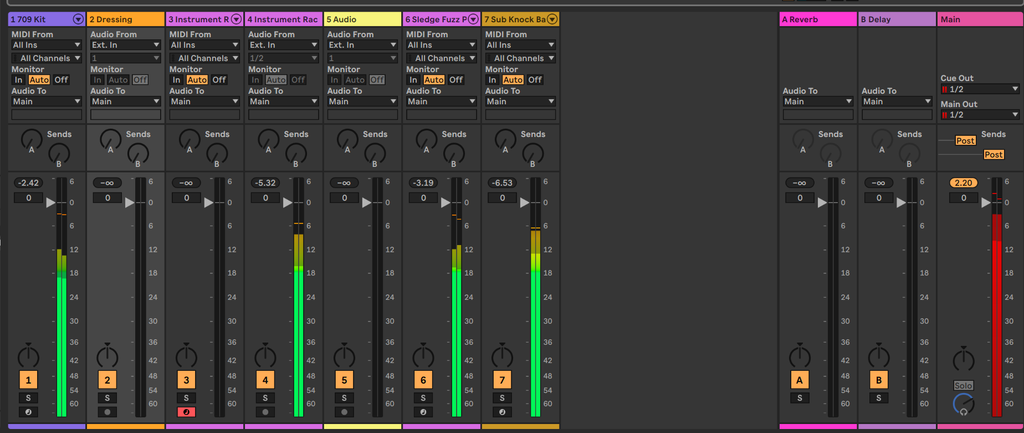
The solid green bars are RMS (average loudness) and the non-green bars are the peak loudness. Red bars indicate “clipping” or going beyond the relative loudness threshold of the DAW. The mixer keeps track of peak loudness only:
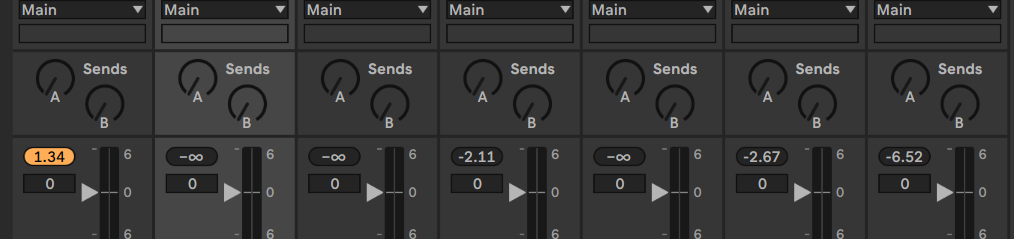
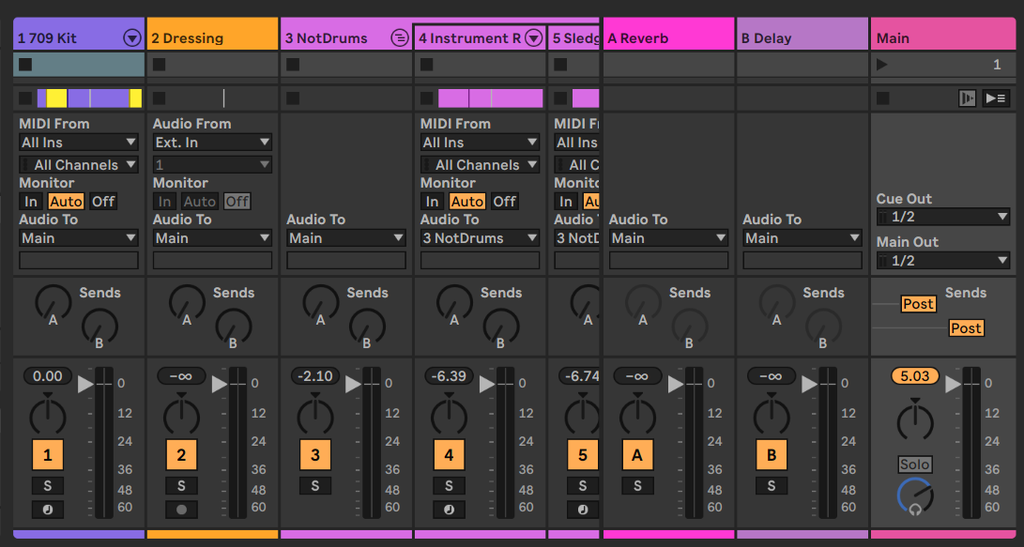
You probably don’t want your sounds to exceed 0 on the meters but many people ignore this and still produce great sounding tracks. The reason for this is that the RMS can be well below 0 and just the peaks are clipping. Look at the Main mix bus on the Week 3 exercise:
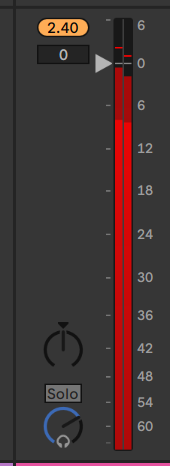
If the RMS were at 2.4 dBFS (decibels full-scale), it would sound terrible. Sounds exceeding the reproducible threshold distort, clip and make fart sounds on the speakers. However if you listen you don’t hear this happening. That is because the RMS is at a very safe -6 dBFS. This highlights the problem with paying attention to peak on the meters – in real-world scenarios it can lie to you about things being wrong.
Moving along though, these meters are signal that you should probably do something about those sounds that are too loud – when mixing, you generally start from looking at the meters and then dig into each channel to manage those mischievous peaks.
I’ll note also that the channel mixers have a track volume mixer – this should not be the first knob that you reach for when doing mixing. I recommend you use these at the end when you need to bring something up or down a little bit and don’t want to add any more devices to the tracks. This knob is also useful for auditioning what the song would sound like with that section adjusted.
Adding sidechain compression
Sidechain compression is when you reduce the volume of one channel with the input of another channel. This is almost universally done in modern music by sidechaining the kick from the drums to the low-frequency sounds which is why I’m covering this topic first in our mixing tutorial. To set up sidechain compression, we’ll first group all of the non-drums sounds together. I’ve highlighted Channels 4-6 in my project and pressed Control+G to group them.
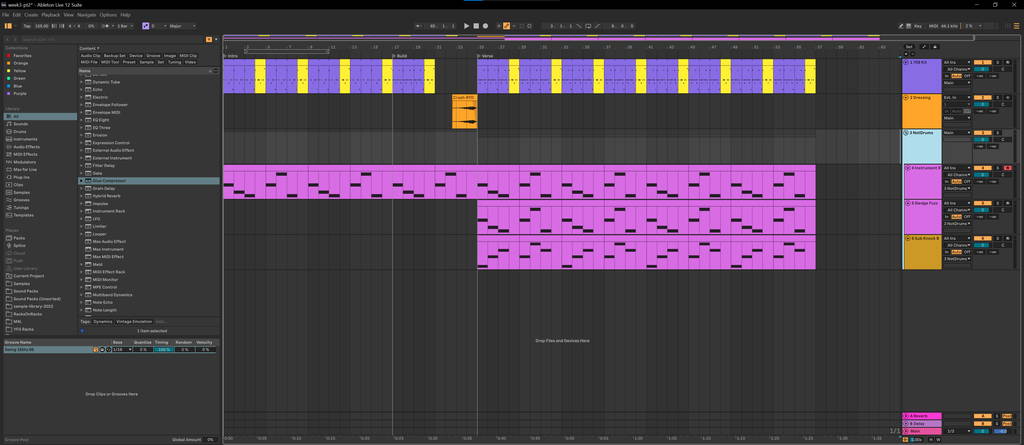
Next, add a compressor to the group. Because I’m assuming you have Ableton Live Intro, I’ll be using the basic compressor, on the group it will look like this:
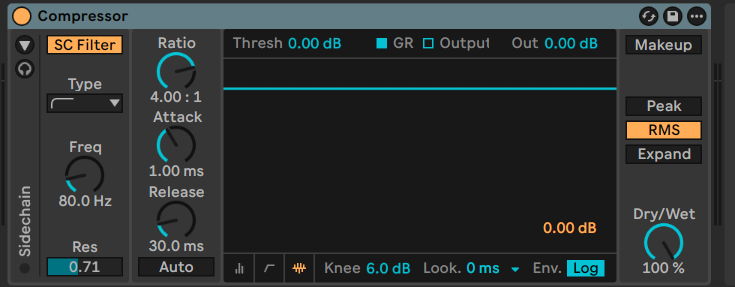
After you have added the compressor, set up the sidechain by clicking the triangle on the Sidechain area of the compressor shell:
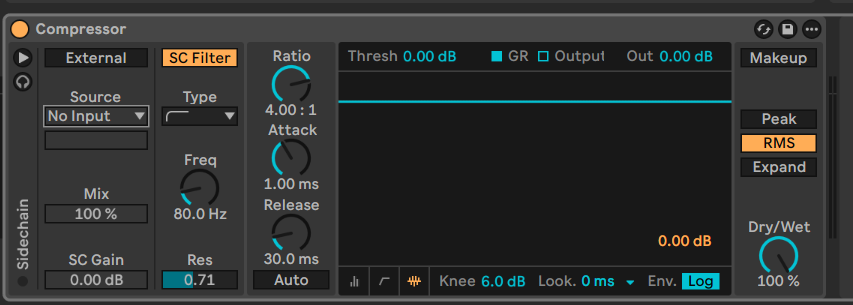
Now, we’ll set the source to our kick from the 709 kit, note it can be helpful to play back your song while selecting a sound to sidechain because it will tell you in the green signal bars which instruments are making noise:
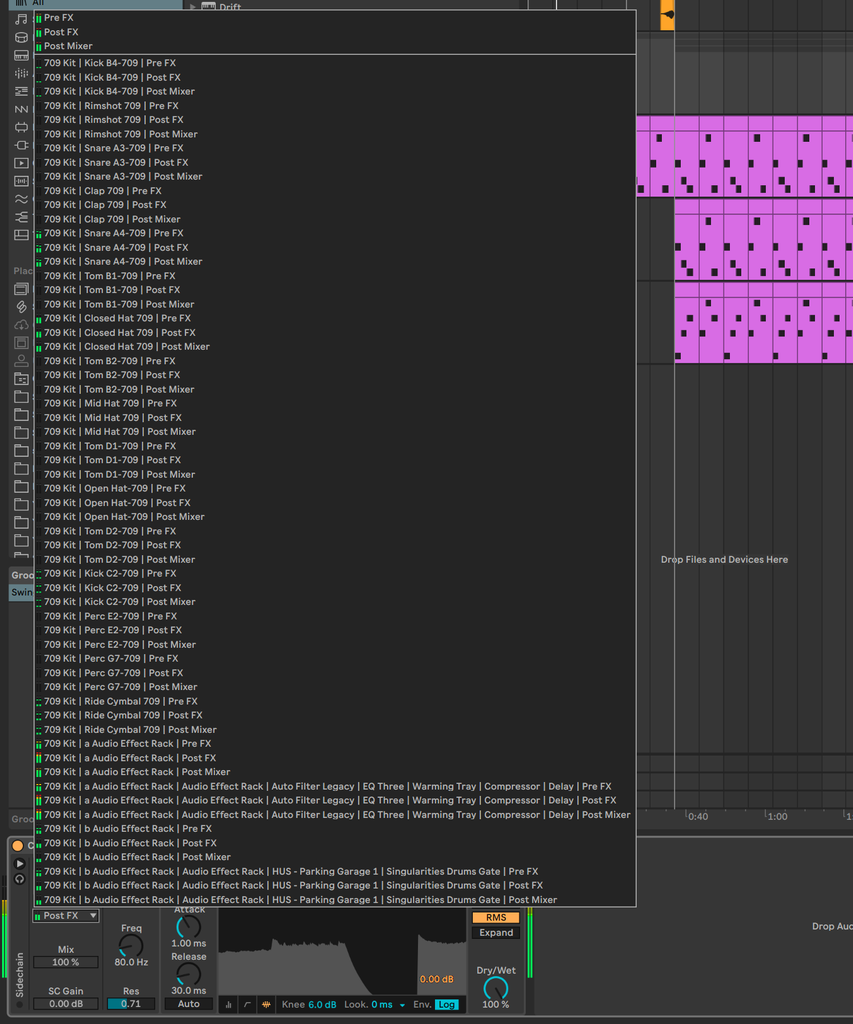
I choose the Kick that is making noise for my sidechain signal:

Now it’s time to set up the compressor to respond to the kick sound. You need to drag the blue bar, for the threshold to a point that is below the volume of the incoming kick signal that we just set up. If you have set up the compressor correctly, you will see peaks on the top orange bar indicating that the compressor is reducing the volume of the grouped sounds coming through the compressor. I found a ratio of 3.71, a threshold of around -21, and some slight gain on the sidechain signal to be the balance I was looking for to get a nice pumping sound being caused by the kick drum triggering the compressor.
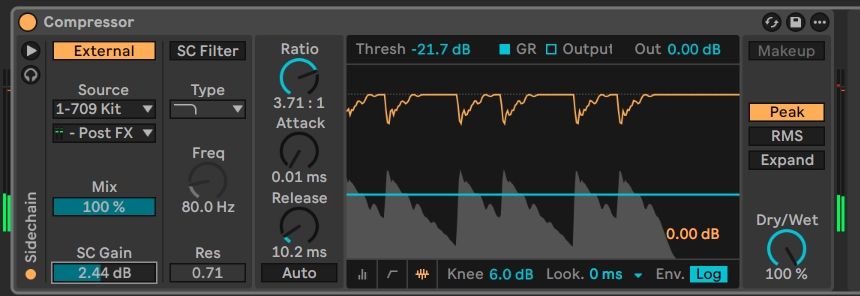
Here’s how the sidechain group sounds without sidechain compression:
And how it sounds with sidechain compression:
If you listen carefully to the version with sidechain compression, you can hear a “ducking” effect where the volume is reduced while the compressor is engaged by the kick (which I have silenced). Producers like this sound because it emphasizes the kick through the mix and makes it easier for dancers to follow the rhythm of the song.
I’m just going to start you off with this basic sidechain approach but there are several other ways of achieving a pumping sound like this. One of the more famous approaches is to use Xfer records LFO tool, with a modulation on volume. Because the kick in house music always happens on every beat, using a 1-beat LFO to modulate the volume roughly matches what happens with sidechain compression for tunes like Deadmau5 would write.
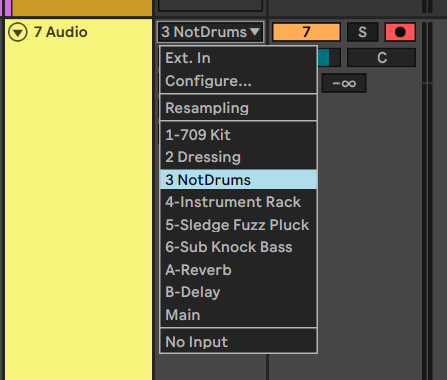
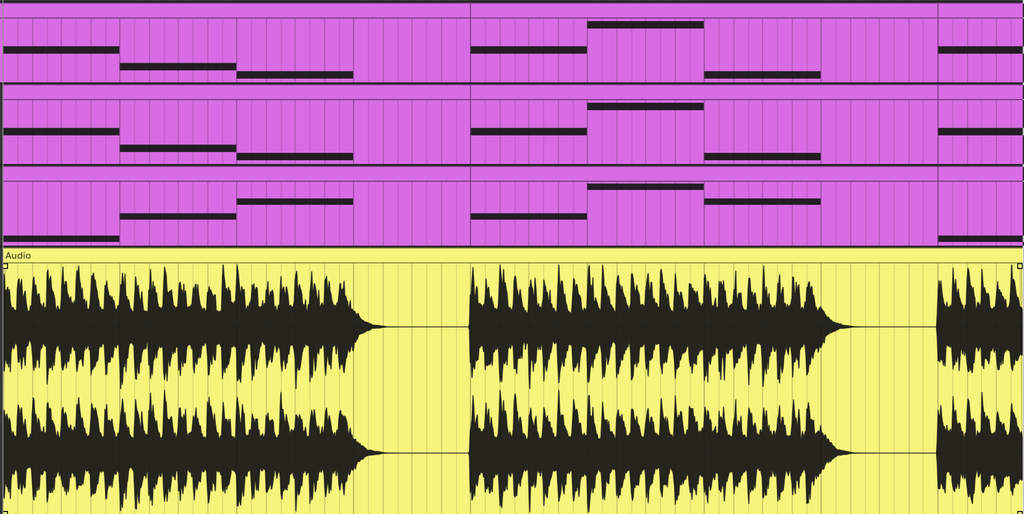
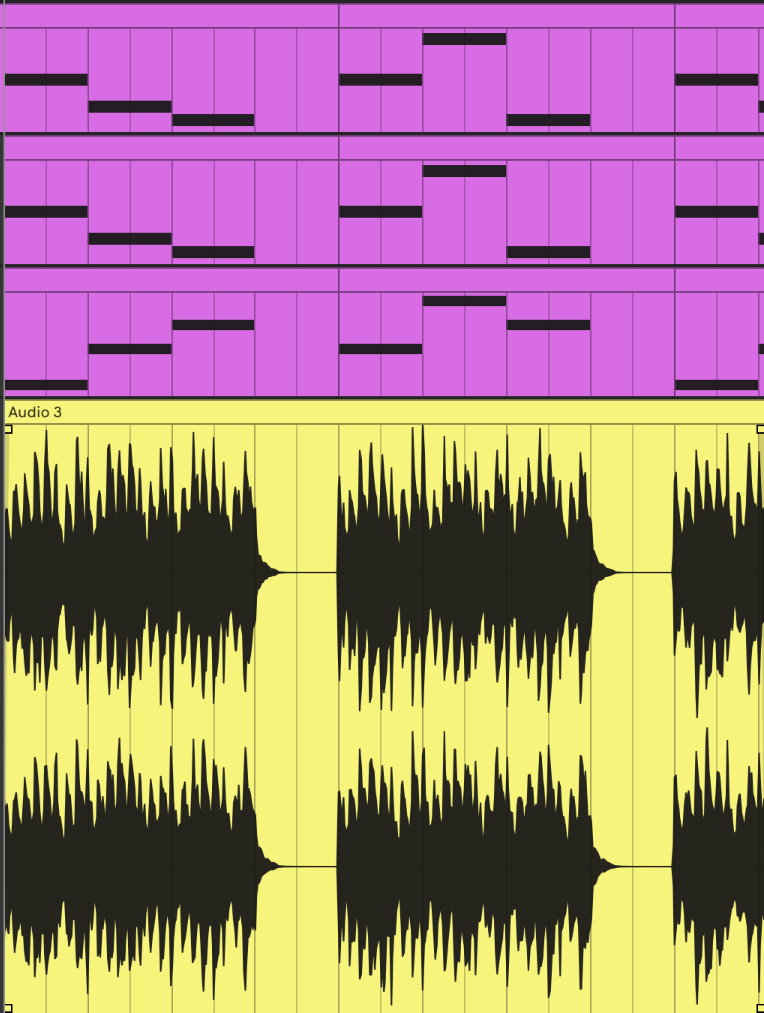
Sidechain compression can be very difficult to understand at first, just focus on listening for the volume pumping sound in your mix and if you’re not hearing it, try adjusting the compressor to where you like the effect and monitor your input signal. If you’re having trouble hearing the sidechain, you can also check it by recording audio from the side-chained group and observing visually the ducking.
To set up a track for recording, click the input and set it to the group you want to record, arm the track for recording, and then record:
After recording without sidechain, I see a pretty-straightforward plot of volume:
With sidechain compression enabled, I’m seeing a dip in the audio where the kicks are pushing down the volume through the compressor:
Clipping
Clipping is the next mixing technique that we’ll be using. Clipping is when you remove any peaks above a threshold. Ableton Live Intro includes the saturator which has a clipper built into it. Let’s clip our drums!
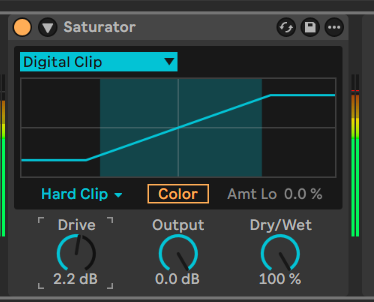
Group any drum sounds, put a saturator Audio Effect on them, set the device to digital clip, set the clip type to hard clip, and then turn off Color:
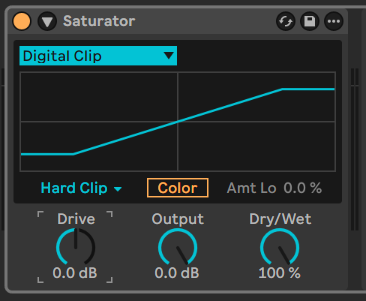
With your clipper engaged, you can drive the signal into the clipper by twisting the Drive knob. When you are clipping too much, the tone of the drums will be lost, so twist the drive knob until you hear distortion (pops and fuzz) and you will also notice the VU meter going into the red a little bit:
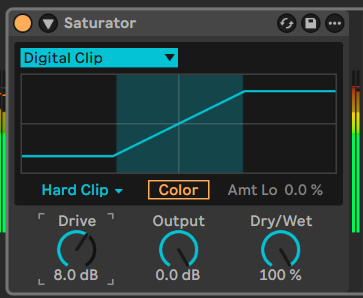
back off a few db.
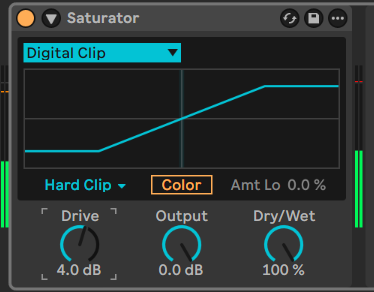
You’ll note that in your mixing monitoring that although the sounds are perceptively louder, you’re not exceeding the 0db threshold in your mix. This is because the peaks of your sounds are being trimmed by the clipper. You can visualize what’s happening by recording the audio similarly to how we did before by setting up audio:
No Clipper (no gain):
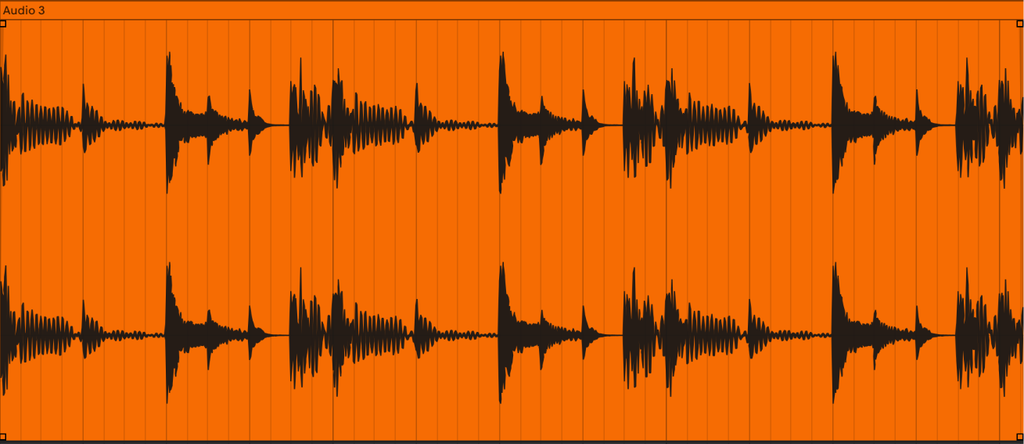
Clipper with some gain:
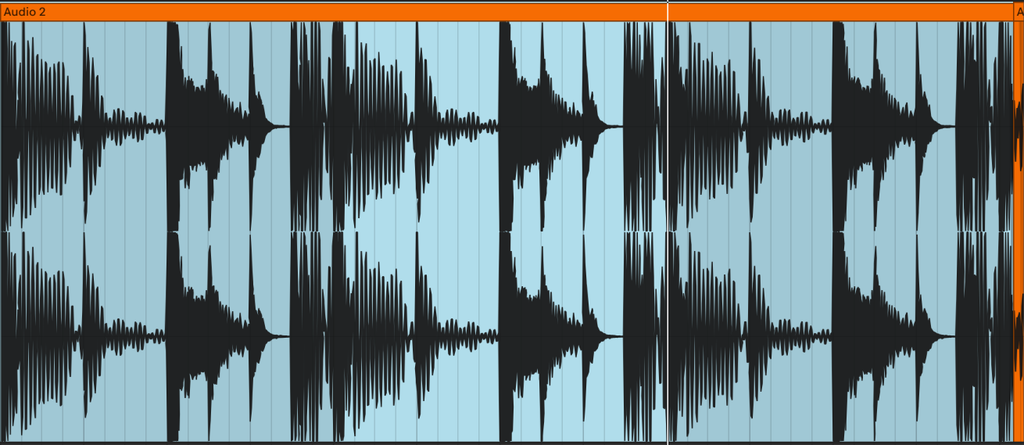
This “looks” like an undesirable amount of gain to be applying to all of our drums, so we should consider adjusting the gain on individual drums, which will give us more control over how the sound volume will be shaped by the effect per sound. In the simpler section of the drum rack, you can adjust the volume for the kick and snare by triggering the sound and then adjusting the volume on the bottom right.
I increased the volume of the kick to be around -0.5

And turned up the snare a bit as well:

Now, without any gain from the saturator, the drums are closer to 0db (the top of the audio recording) when recording out of the drums to visualise them:
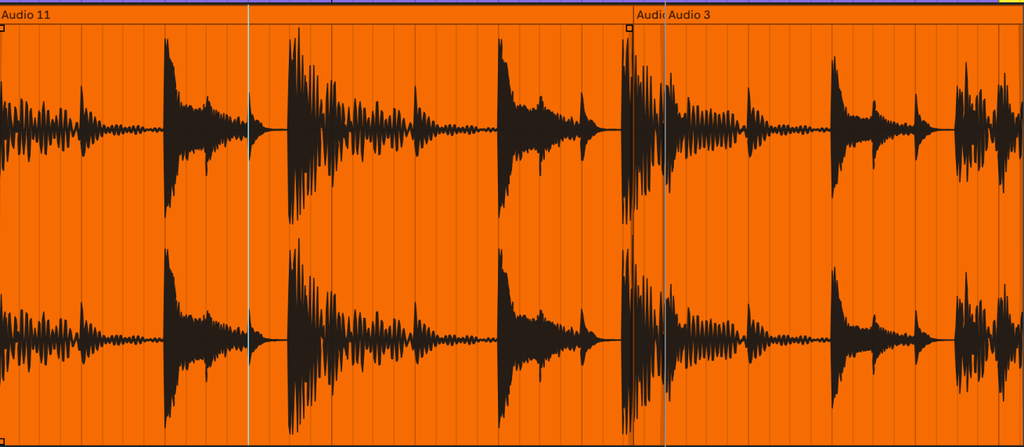
Now, we can revisit the saturator and clip our drums with just less gain (drive):
At moments like these, you sometimes notice that sounds are too present in the mix, for example, I find that the snare we’re using is not what I wanted so I swapped out the snare in MIDI to a different snare. Because everything in a mix is relative – you should be conscientious about making changes because they can result in having to make changes to other sounds that are affected by a decision.
For example, after changing my snare, I again had to go back and adjust the kick further to balance between the two.
Tip Something that you should be doing while mixing is listening to the mix at both loud and quiet volumes. One useful thing to do is to keep turning down the volume and listening for the last things you hear when you turn it down to the minimum volume you can hear. In most mixes, the final thing you should hear is the kick and snare; make sure that you are not making your synths louder than these core elements.
Mixing other sounds
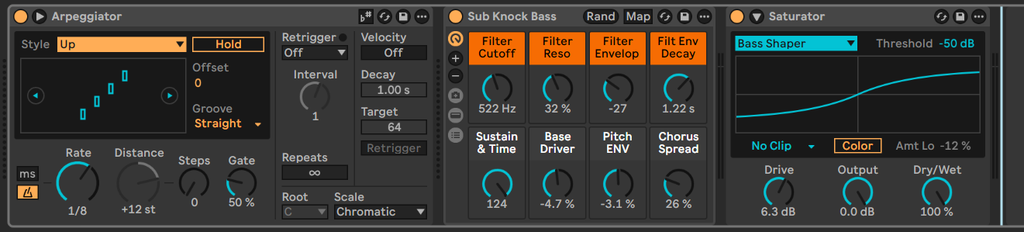
Now that we have increased the level of the kick it’s time to mix in the bass sound. I added a saturator to the Sub Knock bass, selected the Bass Shaper setting, and then opened up the shell to adjust the “Color” of the bass so that there’s a mid-frequency drive on the bass.
Looking at track 6: Sub Knock

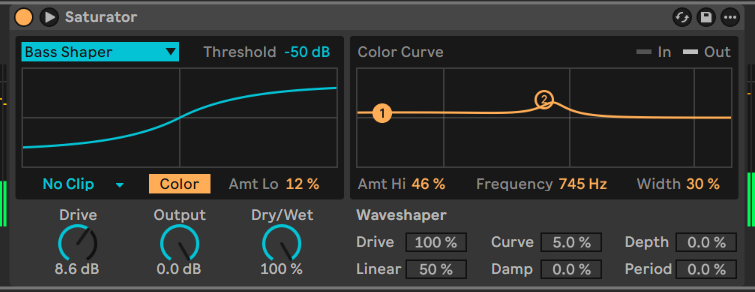
After adding the Saturator to the bass sound, I then can drive it more and adjust the Color (EQ) to make it louder in the mix:
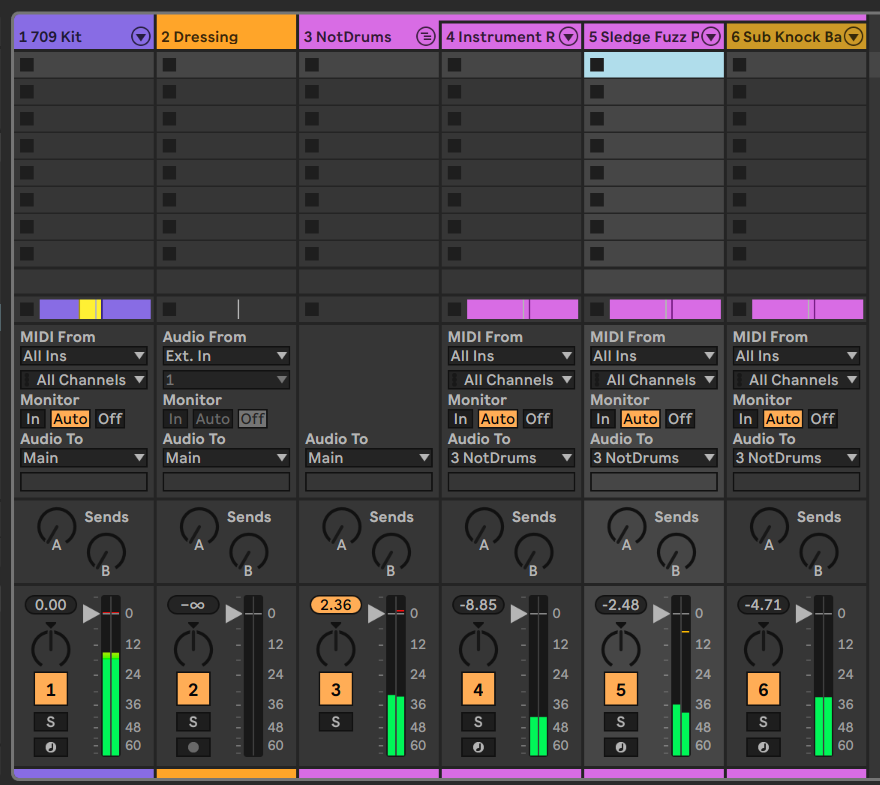
The mixer section is a helpful tool for finding things that are loud in your mix that could use further taming. I like the level where the Sub Knock is at this point (a few DB quieter than the drums) so it’s time to look at the supersaw in the instrument rack. We can also try using an EQ3 to find parts of the supersaw that are not contributing to the overall mix. Select track 4 and add an EQ3 before the autofilter:

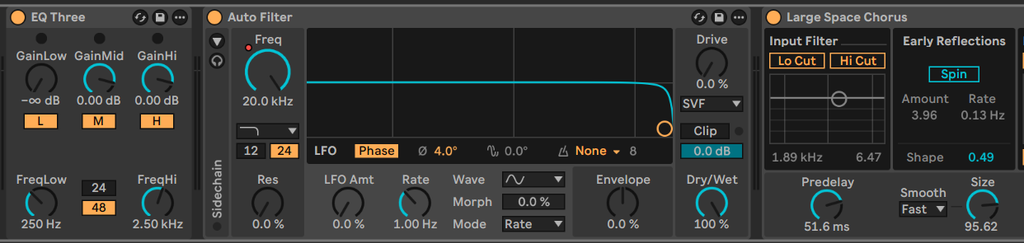
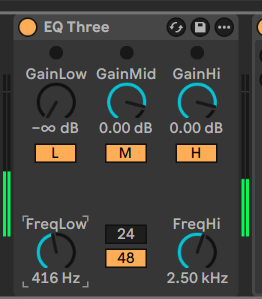
I found that when I reduce the gain on the low portion of the EQ3 that it’s not creating any noticeable difference in the sound. When using equalizers to reduce unwanted or unnecessary frequencies from the tones of sounds, this kind of “doesn’t make a difference” can be an effective strategy for cleaning up your mix and allowing other sounds to shine within the mix. Next, I played with the crossover of the EQ3 to find the point at which there was a noticeable difference, and moved it back a little to ensure we’re keeping the part of the sound that is good:
Next, on the sludge fuzz sound, I’ll try and make similar adjustments to what we did with the supersaw:

I added an EQ3 and an Auto Filter to the device chain and found that the Sludge Fuzz sound is actually adding a nice pitched down sound around 160hz, so I set the EQ3 to only eliminate gain on sounds below that and I also added autofilter for monitoring the sound and playing around with sound design from a resonant peak:
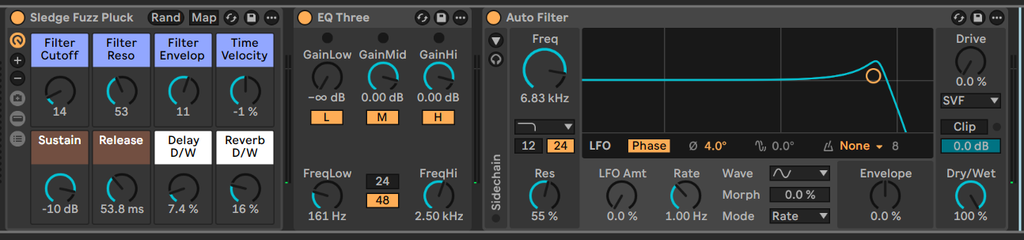
This highlights another aspect of mixing: sometimes you end up doing some sound design while mixing and that’s also part of the music production process. The interplay between writing, mixing, and sound design is a part of producing music – don’t feel like you have to only mix when you’re mixing! In adding the auto filter, I’m now hearing an opportunity for using this tiny peak as a sound that can be useful in making our transitions more exciting. So, I added some automation to the Sludge Fuzz sound during the verse section of the song:
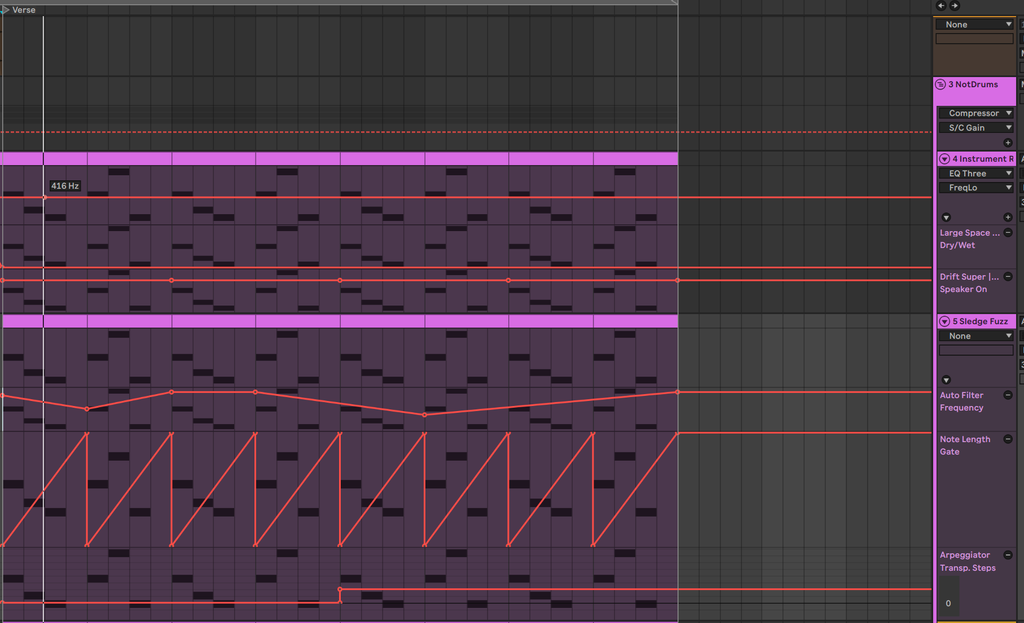
Now the solo’d version of the verse Sludge Fuzz sound is like this:
In context with the full mix:
This is a really nice change! Although it may seem like it at first, mixing is a creative part of the music production process that allows you to give the sounds within your song the chance to take center stage or to step away from it. Now, revisiting the mix I’m noticing the Sludge Fuzz sound is sticking out a bit:
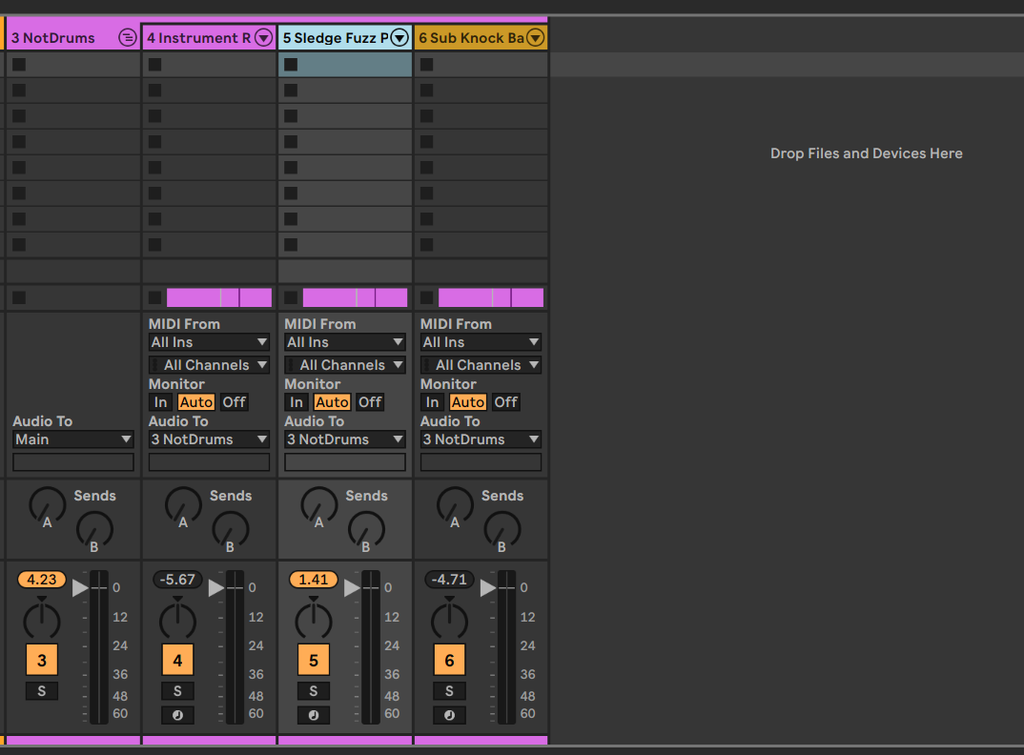
So now we’ll have an opportunity to compress it to reduce the peak volume while retaining the RMS power if the sound. Add a compressor to this sound, set it to peak, move the threshold to where the peaks are happening, then look at the orange indicator for how much reduction is happening:
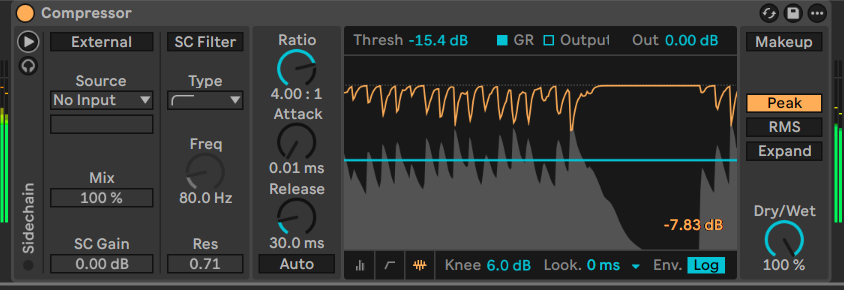
It looks to me like roughly 7db of reduction is about what is happening in this sound, so I can make up for the reduction with a utility after the compressor. Before I add a utility, I check in the mix again to see where the volume peaks are at:
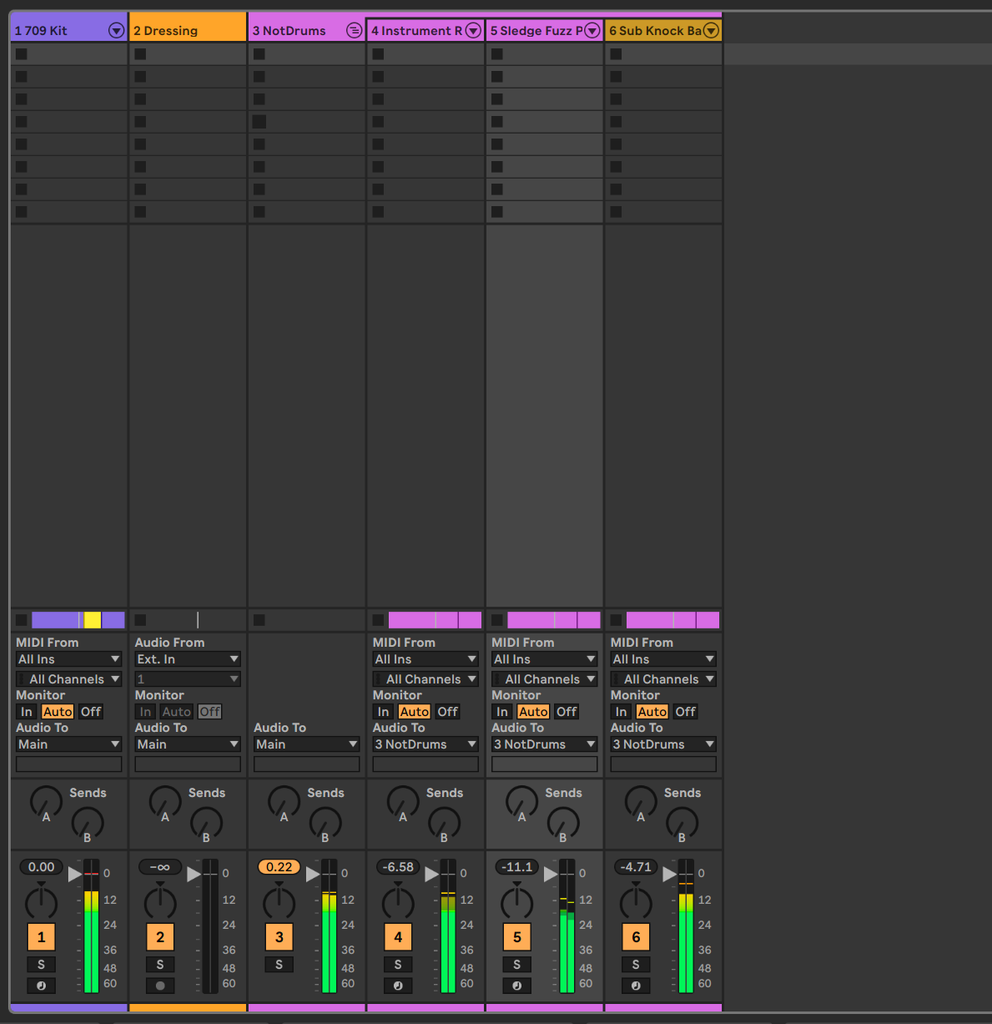
Because we never really go above -10db in the meters and are aware that the reduction we’re getting from the compressor is around -7db, we can pick a value that will bring this sound up in the mix to below the other more dominant bass sounds. I added a utility to the mix that increases the volume by about 4db and to my ear, this places the sound nicely within the mix:
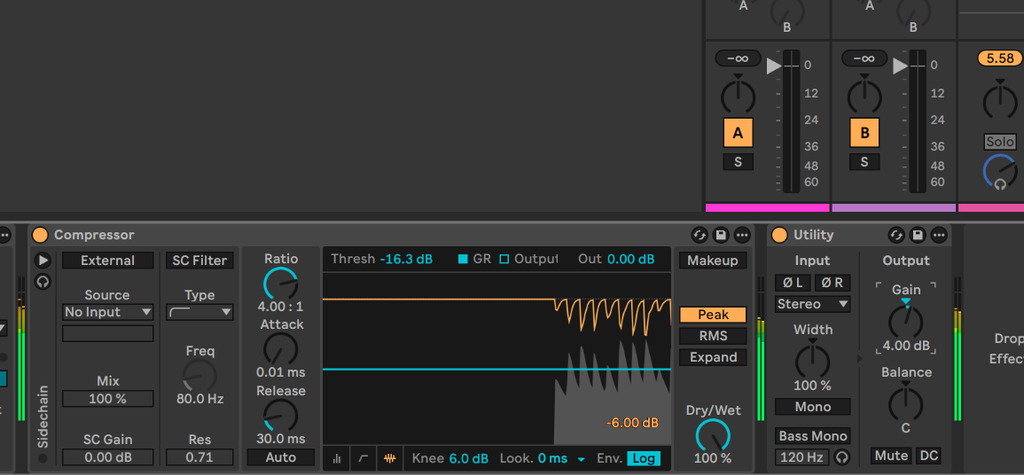
When looking at the mix meter’s, we’re seeing the pluck sitting below the bass elements.
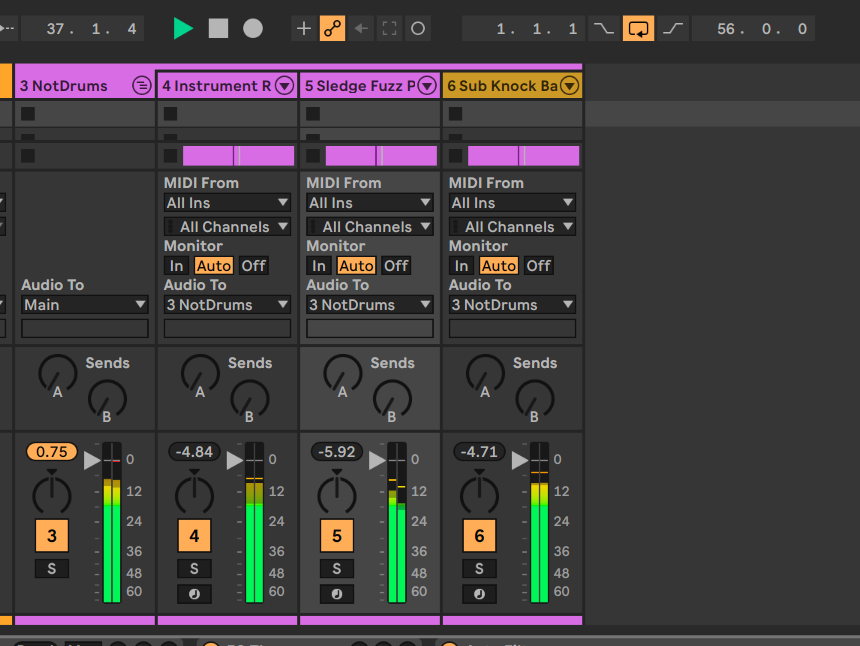
Group mixing the non-drum sounds
Now that we’ve beefed up our synthesizers, they’re sometimes coming together too loud in the mix when they play together. If you observe the non-drum sounds in the mix, you will see they’re combining to be a few DB over zero:
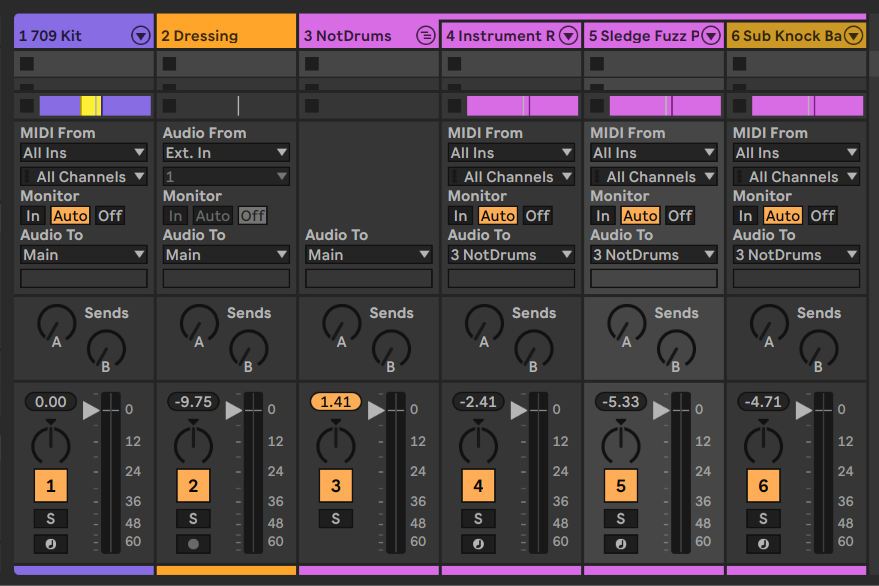
We can clip or compress these sounds as mentioned earlier or we can use a Limiter. A Limiter is just a compressor with infinite ratio – no sounds are allowed exceed the threshold you set on the limiter. Let’s put a limiter on the not-drums group and set the ceiling to -2db or so:
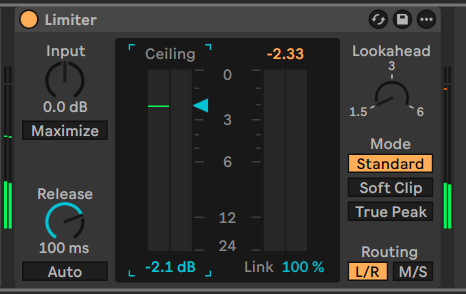
Now, when you play back the mix, you’ll notice that the NotDrums group stays below the limiter’s ceiling:
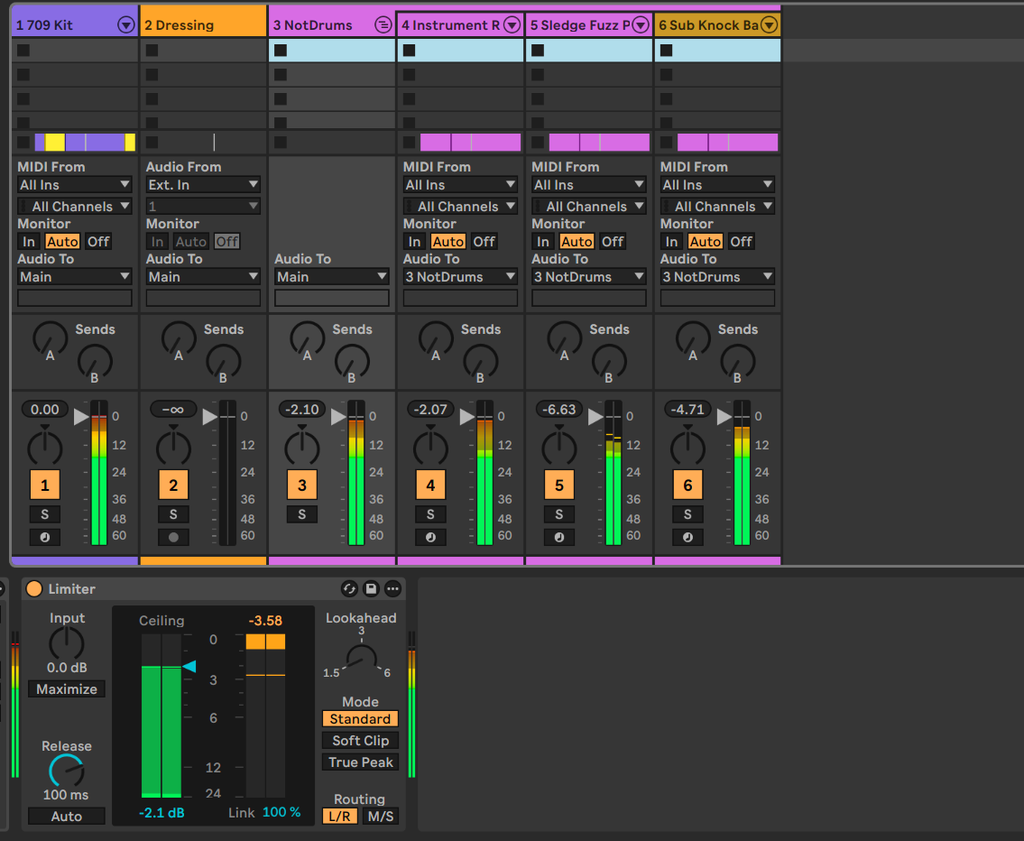
So now, we have a tamed mix overall with each of the synthesizer channels at acceptable peaks. We’re not done yet though, the main mix is still up over 0db so we still have more of the mix to control.
To hear how the mix would sound clipped, we can again add a saturator to the main channel in Digital Clip > Hard > no color:
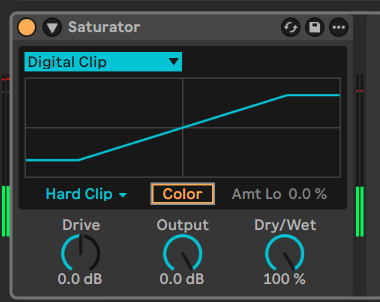
This will ensure that the mix is not going over 0db. However, we may also want to take a look at the spectral mix of the overall track before calling it a day with this mixdown.
Spectral mixing
When I’m referring to spectral mixing, I’m talking about the relative balance of amplitudes and frequencies in the mix. For this part, we’ll use Voxengo Span to visualize the relative frequencies of the mix. Start by putting a Span VST device on your main channel and then open the device. What you’ll see on the device will look something like the following illustration:
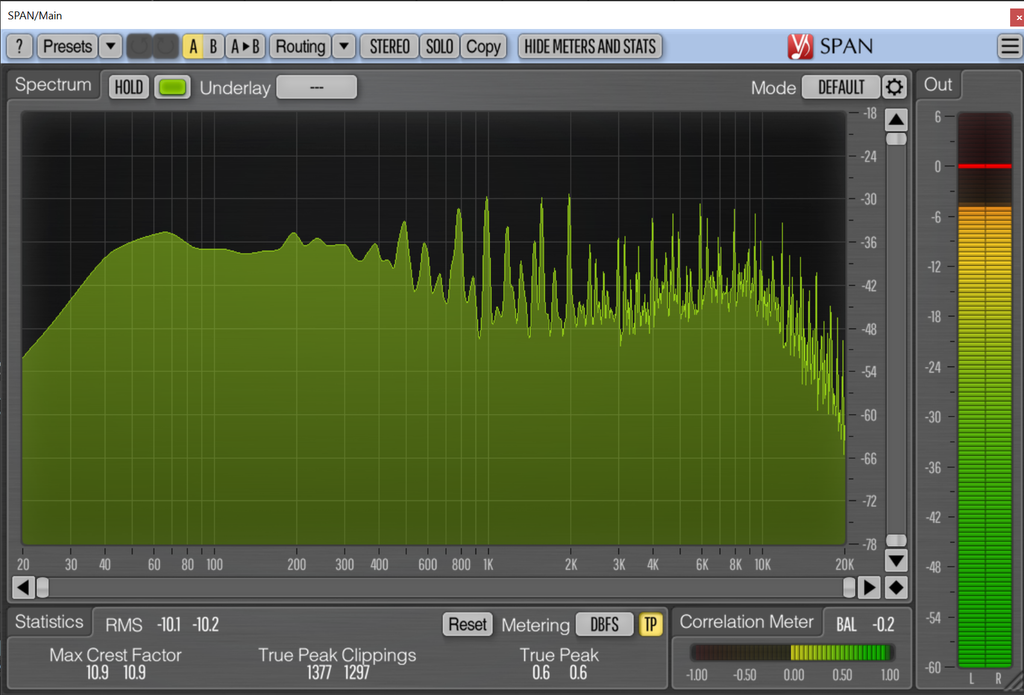
If we look at the spectral mix of the track, we’ll notice the spikes that are holding above the mix. These spikes are potentially peaks that are hitting the meters on our main mix and causing the meters to go into the orange. We can treat this in a number of ways, but the easiest way will be to go back into our NotDrums mix bus (group) and then figure out a good way to reduce the sounds that are accumulating and causing our mix to go over zero.
If you watch the graph in Span as parts of the mix come in, you might notice that the long supersaw sounds are stacking on top of the mix. Let’s adding a compressor to that track to these to bring down the peaks a little more and have it sit better in the mix.
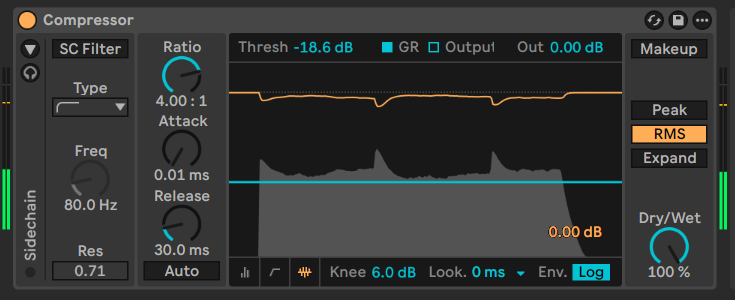
Now, that the supersaws are more in the mix, the Sludge Fuzz peaks are sticking out more than before:
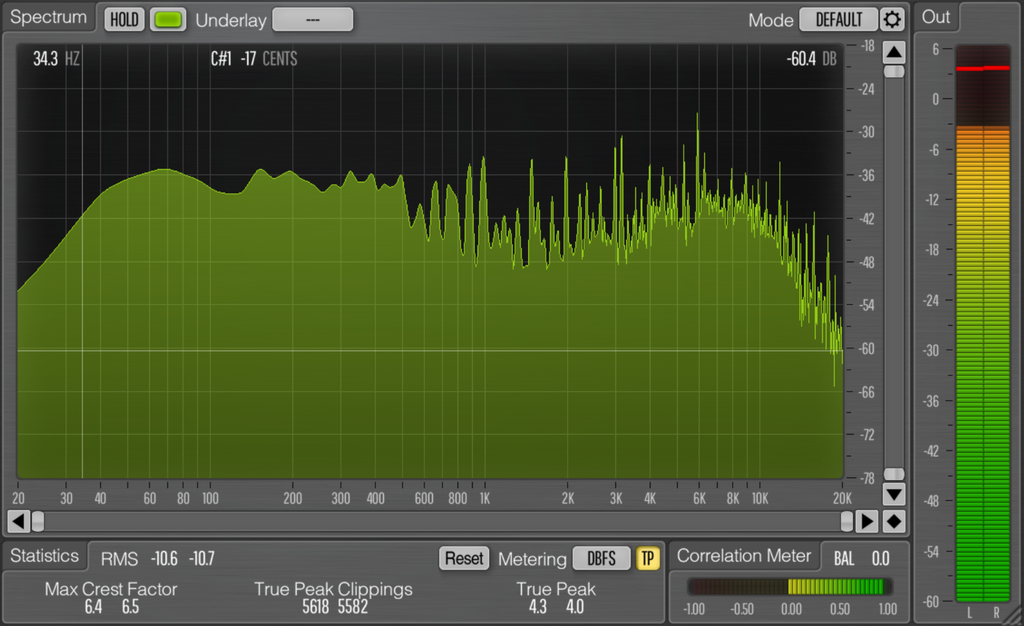
We’ll continue down the path to reducing those peaks further by adjusting the threshold and ratio on the Sludge Fuzz compressor:
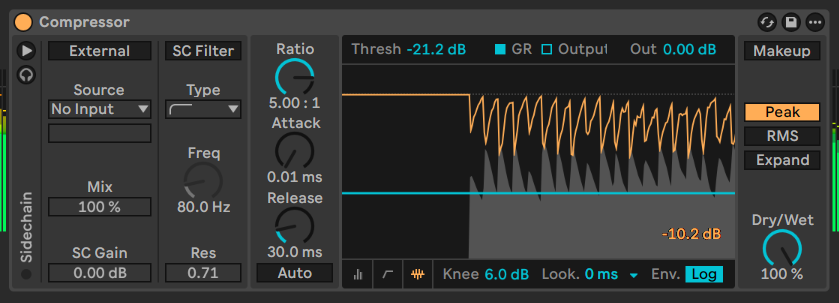
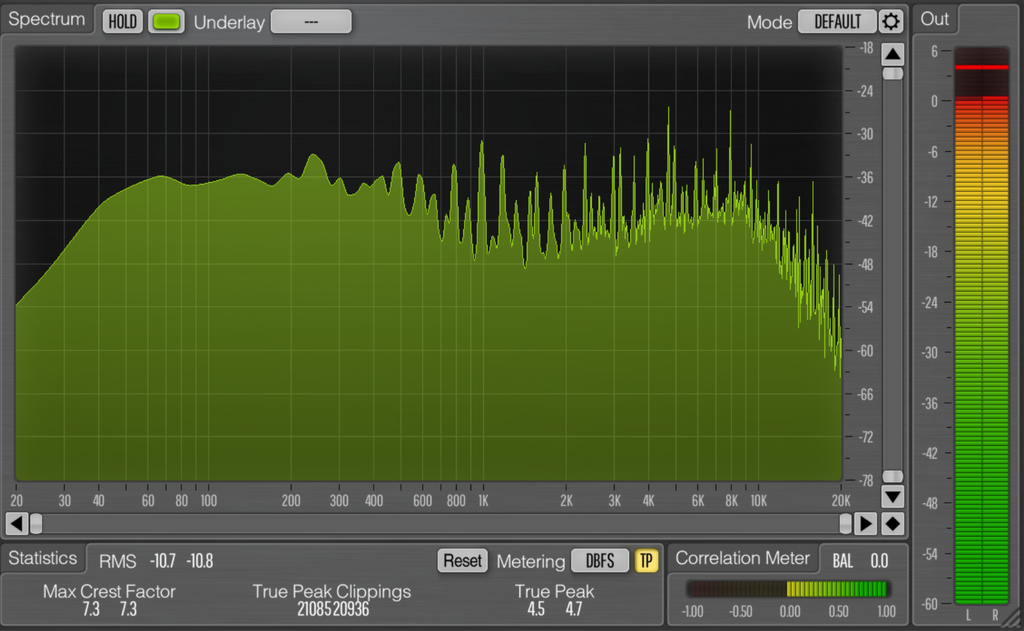
Now is a great time tom compare our mix to a reference track. To use a reference, take a song similar to how you want your mix to sound and place that song in an empty audio channel. Then solo the track and look at span – here’s an example of a reference track running through span:
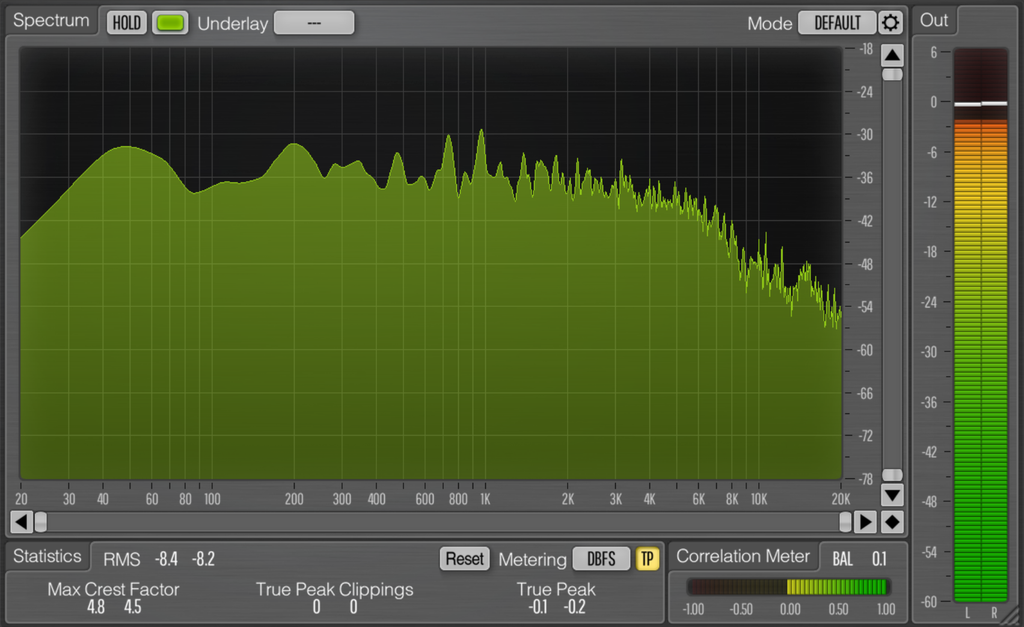
In comparison to our track, which has some frequency dip around 1k-4k, this track has a much higher loudness in that frequency range. If we wanted to match the sound profile of our reference, we could look to filling that gap with another sound or adjustments to our sounds in that frequency range (we won’t do this today).
From a comparison of our track with our reference, we’ll also notice that there are sounds building up in the 60-100hz range which is not desirable. This is most likely coming from the Sub Knock bass device, so we can solo this device and look at it in Span:
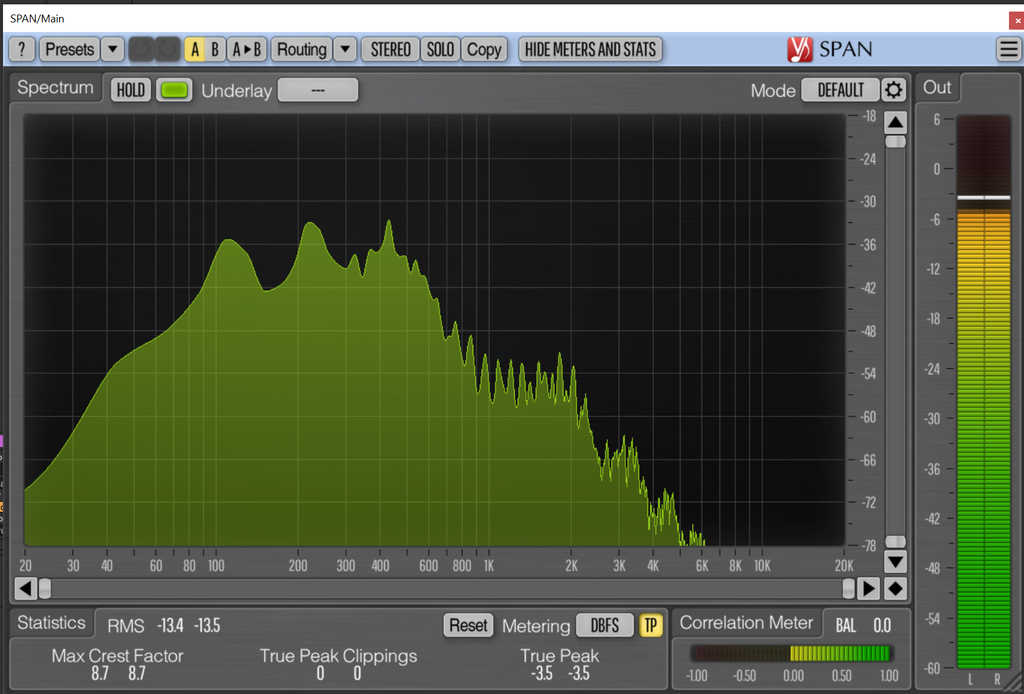
After adjusting the saturator a bit, I ended up disabling the color setting for now to better preserve the mix.
After a little further back and forth with the synth compressors, I got the mix a lot more constrained:
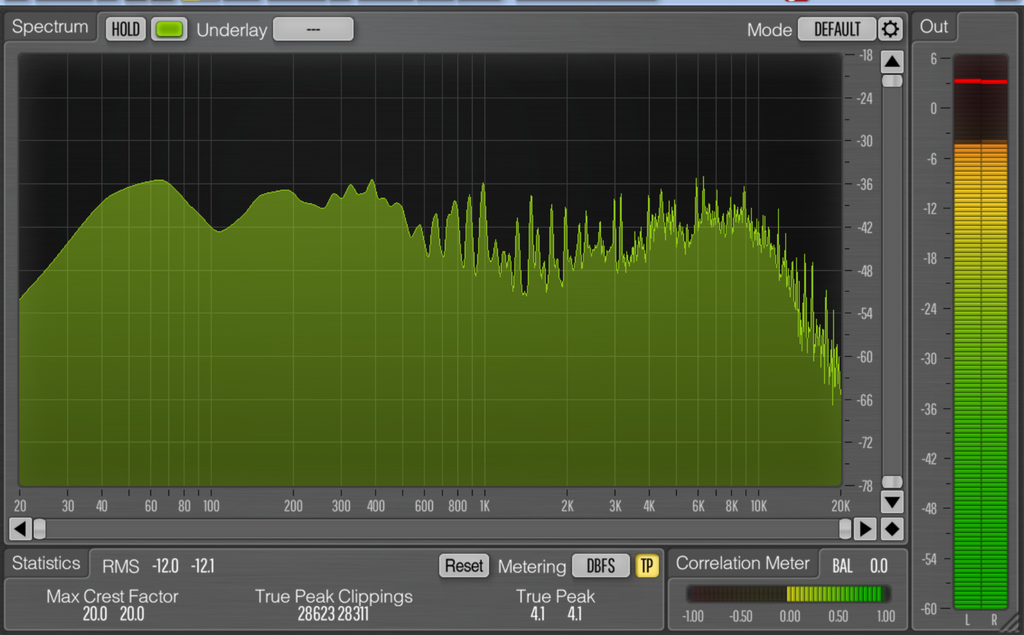
The compressor for the supersaw and sludge fuzz sounds were set to a lower threshold to further reduce the peaks. Now we can reduce the dynamics in the main mix without the peaks triggering the compressor. We use a compressor to reduce the dynamics and then can use the saturator to bring back the volume based on the amount that the limiter is reducing:
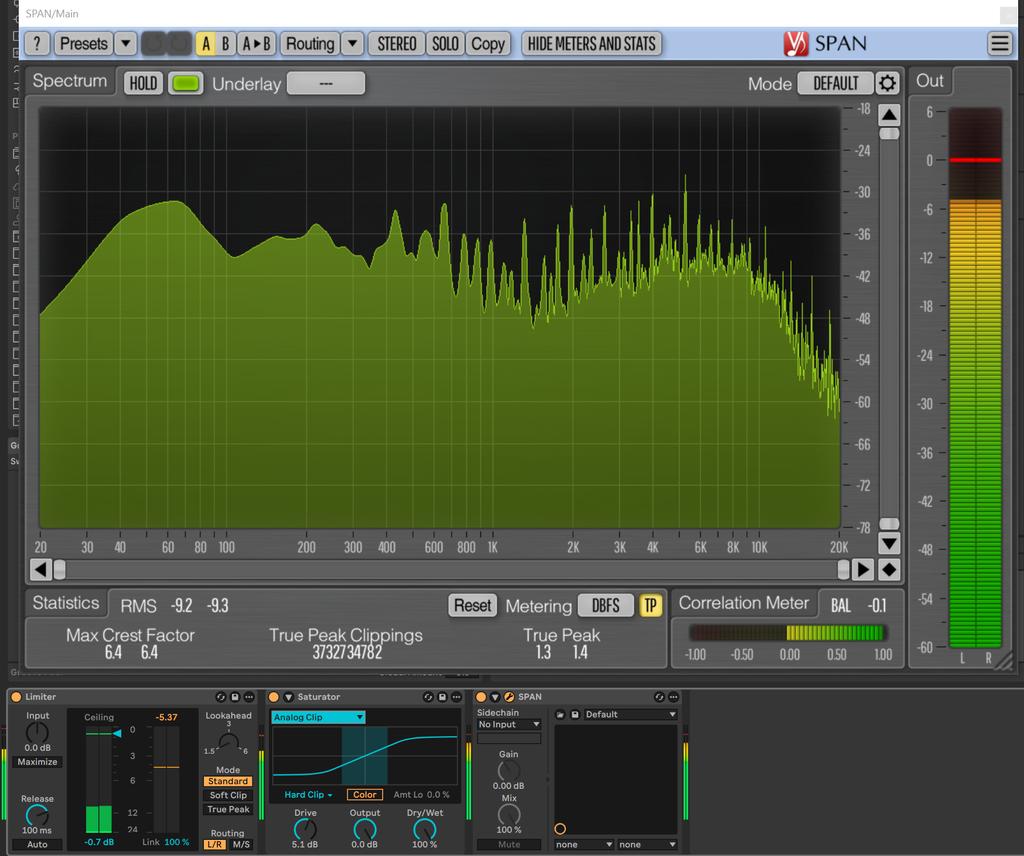
After adding those sounds back in, I’m actually liking the reduction in power in the lower mid frequencies around 450hz. I’ll add one more finishing touch using the Channel EQ, which is just like an EQ3 but with a nice little visualization of what is being filtered out. I’ll add the device to main and will reduce a tiny bit of what I want less of around 450hz.
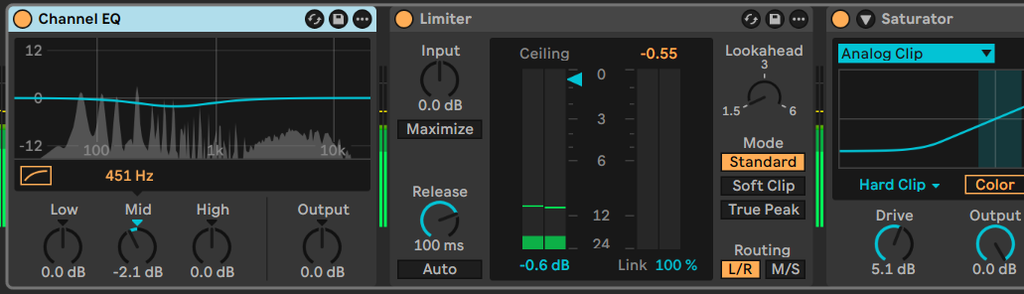
Until you have the fancier EQ8, channel EQ is a great go-to for small changes in your tonal balance because it shows you what’s being changed. Observing in SPAN, we can see our new spectral mix where we have more contrast in the mixdown in the 450hz range.
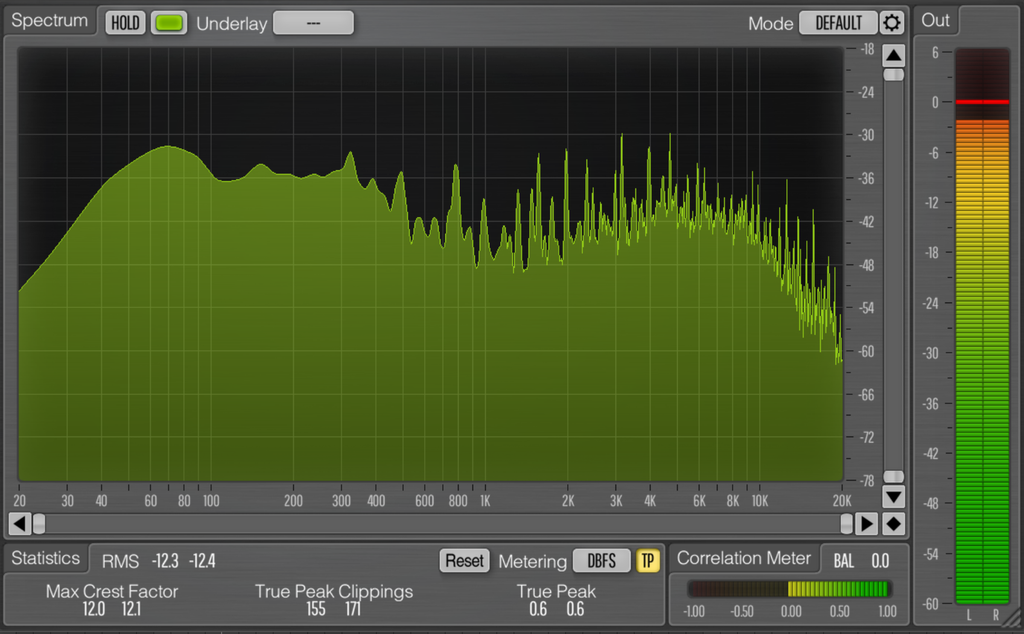
And at this point, we have done our first basic mixdown. The finished mix at this point sounds like this:
For comparison, here’s where we were when we started:
Now, this is not a perfect mix but relative to where we were when we started the following changes are noticeable:
- Sidechain compression pumping the mix off the kick
- Sharp synth noises no longer sticking out in the mix
- More sounds are taking turns through the verse through the new autofilter automation
- We’re no longer clipping on master so the mix will translate better when rendered out of Ableton Live
- Minor tonal changes in the mix balance
If you want to compare versions of our projects, I have uploaded my version for you to check out!
Wrapping Up
Making mixdowns is a huge part of producing and is also a creative step in moving your songs forward. When you are mixing down your tracks, focus on what sounds you want to sit forward or further back in the mix by making them louder or quieter, putting them into a separate tonal space, or by putting them on their own if you want them to really stand out. Because songs are all different and have their own tonal space (defined by the key the music is written in and elements of the song) there is no exact target that you can mix to and should pay attention to what you feel sounds right and expresses what you are trying to create in your song.
You should now understand that mixing is about balancing the amplitude and frequency of sounds and making decisions that impact those domains of your music. This lesson was focused on the beginner topics, covering dynamics (the difference between the quietest and loudest sounds, using compression) and frequency / tone (the spectral distribution of sound, using EQs and filters) but I skipped on an advanced topic, width, which you are encouraged to explore on your own.
Exercise
If you are interested in more mixing practice, you can mix your own songs that you have worked on these past few weeks, working on getting the parts you want emphasized in the front of your mix using compressors, EQs, and filters, as we have done today. If you want more practice mixing, you can find stems for mixing online and can try and produce mixdowns of other produced tracks. The following resources have stems for mixing or links to resources:
- Cambridge Music Technology – Free Multitrack Library
- Produce like a Pro – Free Multitracks to Hone your Mixing Skills
References and resources
I learned all of this from my teachers and can not take credit for what I’m teaching. If you want to learn from the people who taught me, please check out the following masters curricula (in chronological order of when I discovered them):
For more learning resources, you can check out the Patreon pages for some folks I follow (in alphabetical order):
I’m presently unavailable for lessons, but you can try the Producer Dojo, Encanti, or Gravitas Create for facilitated options and my friend Cryptochronica is also providing lessons. If you know me, and I’m forgetting you’re offering lessons, let me know so I can add you.
For those following along, check back for the final exercise.
The lessons so far: